Downloads

psp games , homebrew apps and more

MiniClip 8 Ball Pool

  • move mouse Aim
  • left mouse button Power
  • arrows Use arrows or click on the ball to add spin

Best of 2013
Best of 2013
8 Ball Pool by Miniclip is the biggest and best multiplayer Pool game online! Play for free against other players and friends in 1-on-1 matches, and enter multiplayer tournaments for the billiards crown. Level up as you compete, and earn Pool Coins as you win. Enter the Pool Shop and customize your game with exclusive cues and cloths. This is the complete online 8 Ball Pool experience.

This is the best multiplayer 8 Ball Pool billiards game you’re ever going to play, so start playing for free today!

Miniclip’s 8 Ball Pool is also available as a mobile app on iOS (iPhone, iPad, and iPod Touch) and Android devices.

See our guide on How to play 8 Ball Pool by Miniclip!              


HOW TO ADD ONLINE GAMES TO YOR WEBSITE

How to Add Fun Games to Your Web Site for Free

Edited by Dan Gilbert, Achilles_97, Maluniu, Jack Herrick and 9 others
Game websites are popular for not only kids but for many adults as well. Whether it is classic Pacman or an action-rpg, everyone is in to some kind of video game. If you want your website to enhance to a level where not only close friends and family see it, but many others as well, the following steps will tell you everything you need to know.
following steps will tell you everything you need to know.

Ad

Edit Steps

  1. 1
    Go on to a website, such as freeonlinegames.com, freegamesforyourwebsite.com, or miniclip.com, and search for whatever game you would like.
    Ad
  2. 2
    When you find the game you want, try and find a box that says "embed" and copy the code inside.
  3. 3
    Finally go to your website editor and copy the code onto the page you would like it to be on.

DIRT BIKE 3D ONLINE


Dirt Bike 3D

Tags

Racing Games Dirt Bike Games 3D Games Bike Games Motorcross Games Unity Games

Description

Dirt Bike 3D is a 3D dirt bike game. The goal of the game is to ride your way through twenty increasingly challenging obstacle courses as fast as you can, without falling off your dirt bike! Some advice from us would be to make sure you use your jumping ability often, it can help you cross large gaps, and sometimes free you from tight spots!

Instructions

Accelerate - Up arrow key Tilt left/right - Left/Right arrow keys. Restart level - R key Pause - P key

PSPVC

PSPVC v3.91

Basic Video Options

  • Convert almost any video into PSP compatible media
  • Encode to normal (SP) or HIGH resolution (AVC) videos
  • Option to convert by folder(s)
  • Target File Size option
  • Custom resolution / Automatic resolution
  • Various Resizer modes
  • Manual / Automatic Framerate options
  • Aspect settings (keep aspect / normal / widescreen)
  • Pad & Crop (auto / manual) options
  • 1 Pass or 2 Pass conversions
  • "Force Conversion" option

Advanced Video Options

  • Convert by a fixed or dynamic quantizer
  • Constant Quality option
  • Threads (detected automatically) or set manually
  • Macroblock for improved compression and visual quality
  • Motion Estimation
  • Motion Compare settings
  • Trellis - Motion optimation
  • Pixel Range level
  • B-Frames for better compression and visual quality
  • Motion Quality

Audio Options

  • Select any Audio stream from the video
  • Selectable bitrate values
  • Selectable frequency values
  • Mono / Stereo / Auto
  • Increase or decrease volume (0 = no sound, 1000 = VERY LOUD!!)
  • Normalize - Maximize Volume without distortion (AUTO)
  • Automatic or manual audio sync / delay correction
  • Kill Video - Convert music or rip audio from videos into MP4 AAC sound files

Image Tweaks Adjustments

  • Hue
  • Saturation
  • Brightness
  • Contrast
  • Blur/Sharpen options
  • Line Darkening
  • De-interlace
  • Color Matrix (color correcrtion for mpeg sources)
  • Deblock
  • Noise Removal
  • Rotate image -90°, +90° or 180°
  • Flip image horizontally
  • Reverse clip
  • Fade clip in / out

Subtitles

  • Add your own subtitles or select embedded subtitles (*.srt, *.ass, *.ssa and *.sub format supported)
  • Keep styles, color and layout intact (*.ass / *.ssa)
  • Choose any font from your system
  • Set any font color of your choice
  • Set any outline color of your choice
  • Position the subtitles vertically) where you want them
  • Drop shadow
  • Shadow Opacity
  • Shadow Distance

Custom Logotype / Watermark

  • Add any JPG, BMP or PNG (can also be transparant) supported
  • Can be in any imagesize
  • Position the logo anywhere on the image
  • Adjustable opacity level
  • Option to fade logo/weatermark in or out

Preview Video

  • Preview video before and during conversion

Trim Options

  • Cut or select parts from a video

Queue / Batch Conversions

  • Add unlimited jobs to queue
  • Individual settings for each job (optional)
  • Join/merge all files in queue into a single video file
  • Save current batch list to file for later editing

Icon / Screenshot

  • Generate a screenshot from anywhere in the video
  • Generate a random screenshot

Upload directly to PSP

  • Upload the converted video directly to your PSP with the click of a button

Download videos straight from sites

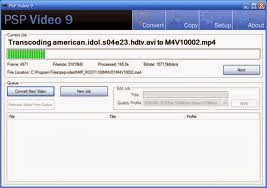
PSP VIDEO 9

PsP video 9 (FREE VIDEO CONVERTER TO PSP)


SP Video 9 is a free PSP video converter that converts video files, YouTube videos, movies and DVD's so you can play them on your PSP. The software can convert all types of video files (avi, divx, xvid, flv, x264, vob, mpeg, DVD's, YouTube, etc.) into the proper video formats (MPEG-4, H.264) that play on the PSP. It is available for Windows and Mac. Donate
PSP Video 9 is freeware. However, if you enjoy using PSP Video 9 and would like to help support its development, please consider making a donation.
Send Donation Contact If you require help with PSP Video 9, have found software bugs in the program or would like to make a feature request for future versions, please make a post in the PSP Video 9 Forum.
If you want to contact the development team directly, you can do so through our contact form. We are unable to answer any software support/help requests made through this form. Please use the PSP Video 9 Forum for those type of requests.
Credits PSP Video 9 utilizes a number of seperate programs including FFmpeg, NicMP4Box, MediaInfo, AviSynth and VSFilter. PSP Video 9 also utilizes a number of libraries including XULRunner and GeckoFX. These seperate programs and libraries are open source software. Their source code and licenses can be found here.

How to install homebrew apps, games, and plugins


How to install Homebrew apps, games and plugins on your PSP.


Table of Contents
Introduction
Installing Homebrew Games/Applications
Installing Plugins
Links to download homebrew


Introduction
I am writing this guide so I don't have to keep explaining this to people in the help section. This guide will assume you already have custom firmware installed on your PSP. If you don't have custom firmware on your PSP then check out the Mega-Thread for a tutorial on how to do that. This guide also assumes you understand how to use a computer and that you know what the root of the memory stick is. Show the spoiler below if you don't know. I am making this tutorial as easy to understand as possible. If you get confused by something re-read it again. Try to do exactly what I say on your PSP and if it doesn't work then send me a PM or reply to this with your problem.


Installing homebrew games and applications
When you download a homebrew application it will typically be in an archived file format. This varies but is usually .zip, .rar, .7z. Windows XP, Vista, and Windows 7 comes with a built in unzipper that will unzip a normal .zip file. But for the other two files you will need WinRAR or 7-zip. I prefer using 7-zip.

When you open a file using 7-zip the window will look similar to this:


Select all of the files and click 'extract'. Then click the button to the right of the destination address and select a folder you want to use. I prefer using Documents or Desktop for mine.


My example is actually a firmware upgrade but it's very similar to a normal homebrew app. I have a folder named RECOVERY and inside that is an EBOOT.PBP file. All homebrew applications and games will have one (1) folder and inside that folder will be an EBOOT.PBP file. There might be other files and folders in there and the eboot file will need them to function. You copy that entire folder to ms0:\PSP\GAME\. So it will look like this: ms0:\PSP\GAME\somehomebrewapp\eboot.pbp. If there is more than one folder (like this: \PSP\GAME\folder1\folder2\homebrewapp\eboot.pbp) then you need to copy the folder out of folder 1 and 2 and paste it into the GAME folder like in my example above.

If you did that correctly, when you turn your PSP on you can now go to the Games section on your PSP, scroll down to Memory Stick, press X, and you'll see your games and apps.

1.50 Kernel Homebrew Apps and Games
Some older homebrew apps might look like this: . If it has two folders and one has a % in it then you know it was made for the 1.50 kernel. It comes in this format because of the way the KXploit works (the method to load homebrew on a 1.50 OFW PSP). These homebrew apps can only be used on a phat PSP (PSP1000). If you have a phat PSP and you want to use these then you need 5.00 M33 CFW with the 1.50 kernel addon. Download the addon and copy the 150k_installer folder to your \PSP\GAME folder. Run the installer from PSP just like you would start any other homebrew app. See the above section if you don't know how to do that.

Now when you restart your PSP you can hold down the R button and enter the Recovery Menu to change the kernel modes. Click Configure and then go down to where it says "Game folder hombrew (currently 5.xx kernel)" and click that. It will toggle the kernel mode and allow you to play with old homebrew. You would then copy the two files to the \PSP\GAME\ folder and then start the app from the PSP like any other homebrew app.

I also think you can remain on the 5.xx kernel in the recovery menu and copy the 1.50 kernel homebrew to the \PSP\GAME150\ folder and play it that way. I would like someone else to confirm this for me though as I cannot remember if that is the way it works.

According to Oyabun, kxploited homebrew () will load on a 5.00 M33 slim using LEDA 0.2 or eloader, or a 5.50 GEN slim using eloader. You can read more about that here.

Plugins
Plugins are essentially homebrew applications that run in the background and add extra functionality. A few examples I can think of right now: fusascr.prx and dayviewer.prx. Fusascr.prx allows you to take a screenshot of your PSP anytime, anywhere and dayviewer allows you to modify the text where the date and time go.

Plugins go in a folder called seplugins. This folder is on the root of your PSP (see above if you don't know what the root is). A plugin file has a file extension of .prx. These prx files go directly into the seplugins folder. You will also see vsh.txt, game.txt, and pops.txt files in the seplugins folder. If not you can create them and leave them empty until you need to update them.

The txt files will include lines such as these:
ms0:/SEPLUGINS/fusascr.prx 0
ms0:/SEPLUGINS/dayviewer.prx 1
If there is a 0 after the plugin name then the plugin is turned off, if there is a 1 after it, the plugin is turned on. If there is no number after it then the plugin is turned off. Most plugins you download will come with the required text files. I recommend opening those text files and copying the contents to the text files you already have on your PSP.

HOW TO PLAY PSP GAMES ON PC (WITHOUT PSP)

Play PSP Games on PC using PPSSPP
Emulator


Requirements

  • PC with a single core CPU of at least 2.0GHz or higher
  • 256MB graphic card or higher (It may work on a built-in GPU)
  • 2 GB RAM or higher
  • Windows XP/Vista/7/8 OS
  • 7-Zip or WinRAR for zip file extraction 7-Zip or [http:/www.win-rar.com/download.htm WinRar)
  • PPSSPP Emulator the latest version PPSSPP
  • PSP ROMs (ISO)
  • At least 5GB free disk space on your computer (for application and ROM storage)
  • PlayStation Controller or Xbox controller(optional) I use a PlayStation controller

Download and Install PPSSPP Emulator

  1. 1
    First, download and install zip file extractor.
    I recommend 7-Zip because it is an open source application, it is free, and it can extract almost all zip formats. We will use this application to extract PPSSPP emulator and to extract the PSP Game ISO.
    Was this step helpful? Yes | No
  2. 2
    Check your Windows Operating System type.
    To check, click Start, right-click “Computer”, then click "Properties", and then "System Type".
    Was this step helpful? Yes | No
  3. 3
    Now, download the correct PPSSPP emulator for your Windows - If your operating system is running on 32-bit, download the installer for 32-bit.
    If your operating system is running on 64-bit, download the installer for 64-bit.
    Was this step helpful? Yes | No
  4. 4
    After you have downloaded it, you need to extract the folder inside the zip file.
    Right-click the PPSSPP zip file and click "Extract files", select a destination folder, then click "OK". (In this tutorial I will extract all zip files to the Desktop screen.)
    Was this step helpful? Yes | No
  5. 5
    Now, open the extracted folder to make sure the files are there.
    You will see the folder name after the extraction, and the files inside the folder on the screenshot below:
    Was this step helpful? Yes | No
  6. 6
    Minimize the PPSSPP folder and download ROMs or games.
    You can download them here: (www.emuparadise.me/Sony_Playstation_Portable_ISOs/44). Use the letters to browse the game that you want. In this tutorial I will download Tekken Dark Resurrection. Click the letter “T”.
    Was this step helpful? Yes | No
  7. 7
    Now, scroll down to look for the name, " Tekken - Dark Resurrection (USA)".
    Was this step helpful? Yes | No
  8. 8
    Scroll down until you find "Direct Download", and click the game's name.
    It will redirect you to the download page. Look for "Direct Download" again, and click the game's name to start the download.
    Was this step helpful? Yes | No
  9. 9
    Wait until the download is done, then extract it.
    Go to the Download folder, right click the zip file, and click "Extract files".
    Was this step helpful? Yes | No
  10. 10
    Change the destination folder to "Desktop" and click "OK" to extract it.
    Wait until the progress bar is complete.
    Was this step helpful? Yes | No
  11. 11
    Now, go to the extracted ROM folder and right-click it, then click "Open".
    You will see a lot of files in that folder
    .
    Look for the “RAR File” and right-click it, then click "7-Zip", then "Extract files".
    Was this step helpful? Yes | No
  12. 12
    Change the destination folder to "Desktop" and click "OK" to extract it.
    Go to the Desktop screen and you should see the .ISO file.
    Was this step helpful? Yes | No
  13. 13
    To play the game, go to the PPSSPP folder again and right click the "PPSSPPWindows" file, and click "Run as administrator".
    Was this step helpful? Yes | No
  14. 14
    If you have a controller for your PC, connect it.
    Now you need to load the game. On the main screen of the emulator, click "Load", then navigate to the game ISO path (it should be on the Desktop), and click "Open".
    Was this step helpful? Yes | No
  15. 15
    Play the game and enjoy!
    Want to play Tekken competitively? This link might help - Win in Tekken

CHAT HERE

YOUR aD HERE